
Why Your ChatGPT Logo Isn't a Vector
ChatGPT designs great-looking logos, but it can only hand you a raster image: a PNG made of pixels. Zoom in or scale it up for a t-shirt, banner, or sign, and it turns blurry. Ask ChatGPT for an SVG and it will either generate code that doesn't match your logo or simply wrap the pixels in an SVG file, which print shops will bounce right back to you.
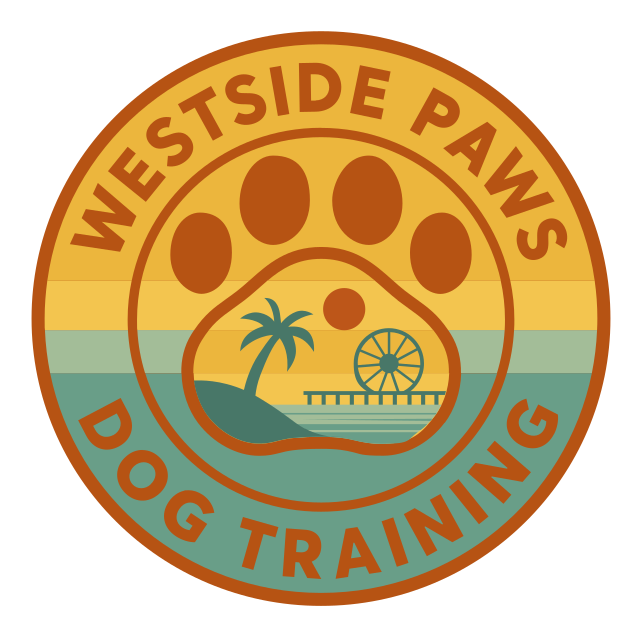
A true vector version has to be traced: the shapes rebuilt as mathematical paths that scale infinitely with razor-sharp edges. The before and after comparison at the top of this page shows exactly what that difference looks like.
There are four ways to get there. We'll walk through each one, from do-it-yourself to done-for-you, with the honest pros and cons.
Method 1Hand-Trace With the Pen Tool in Adobe Illustrator
This is the gold standard: the same technique professional vector artists use. You place the ChatGPT image on a locked layer, then redraw every shape on top of it with the Pen Tool. The result is a clean, minimal set of paths with exactly the anchor points the artwork needs, nothing more.
Watch the full process here:
The short version:
- Place your ChatGPT PNG in Illustrator and lock it as a template layer
- On a new layer, trace each shape with the Pen Tool; fewer anchor points make smoother curves
- Sample the original colors with the Eyedropper, then clean them up to a deliberate palette
- Refine curves with the Anchor Point tool until edges are crisp
- Delete the template layer and export as AI, EPS, SVG, or PDF
- Highest possible quality: clean paths, sharp edges, deliberate colors
- Full creative control: fix the small flaws ChatGPT left behind
- Print-ready output that any shop will accept
- A skill that pays off on every future design project
- Steep learning curve; the Pen Tool takes real practice
- A detailed logo can take 2–6 hours to trace well
- Requires an Adobe Illustrator subscription (~$23/month)
Method 2Auto-Trace With Illustrator's Image Trace
Illustrator has a one-click alternative: Image Trace. Place your PNG, open Window → Image Trace, pick a preset like "High Fidelity Photo" or "3 Colors," then hit Expand to convert the result into editable paths.
On a clean, high-contrast logo it can work surprisingly well. The catch: ChatGPT images are rarely clean. They have soft anti-aliased edges, subtle gradients, and painterly texture, exactly what auto-trace struggles with. You typically get wobbly edges, merged shapes, and hundreds of stray paths that take longer to clean up than expected.
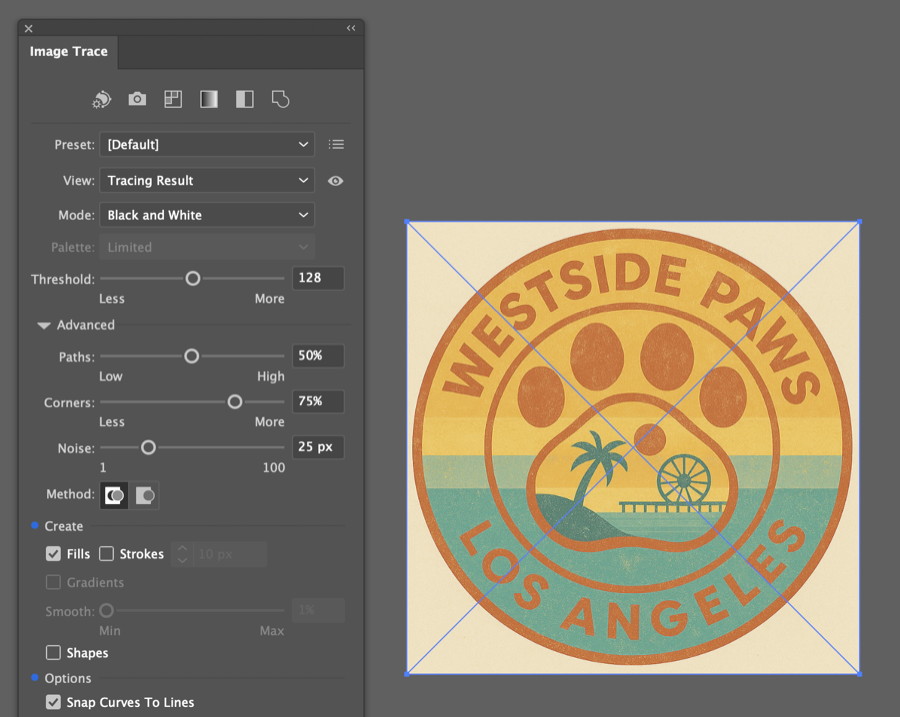
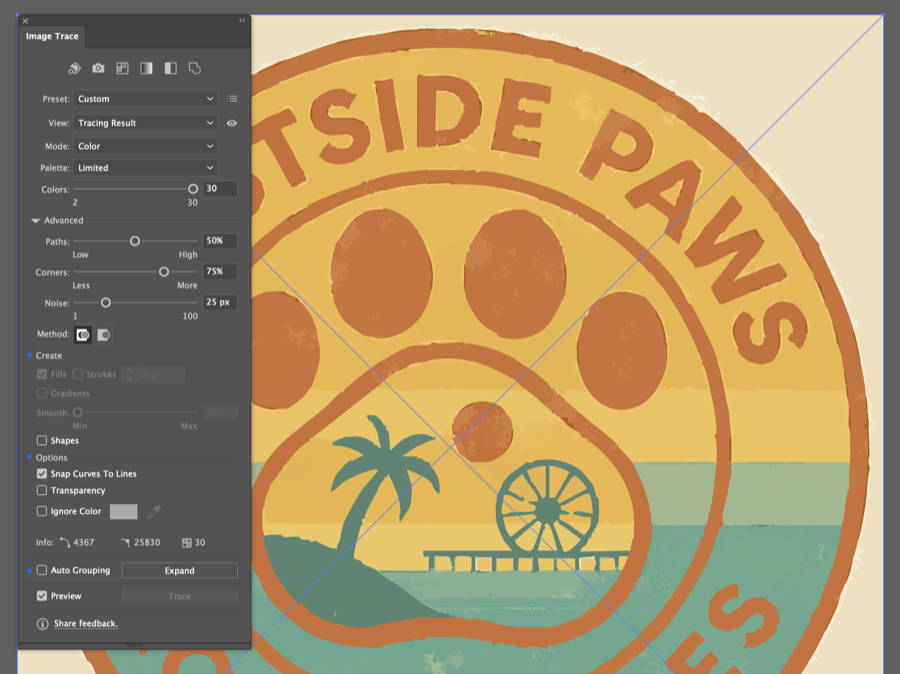
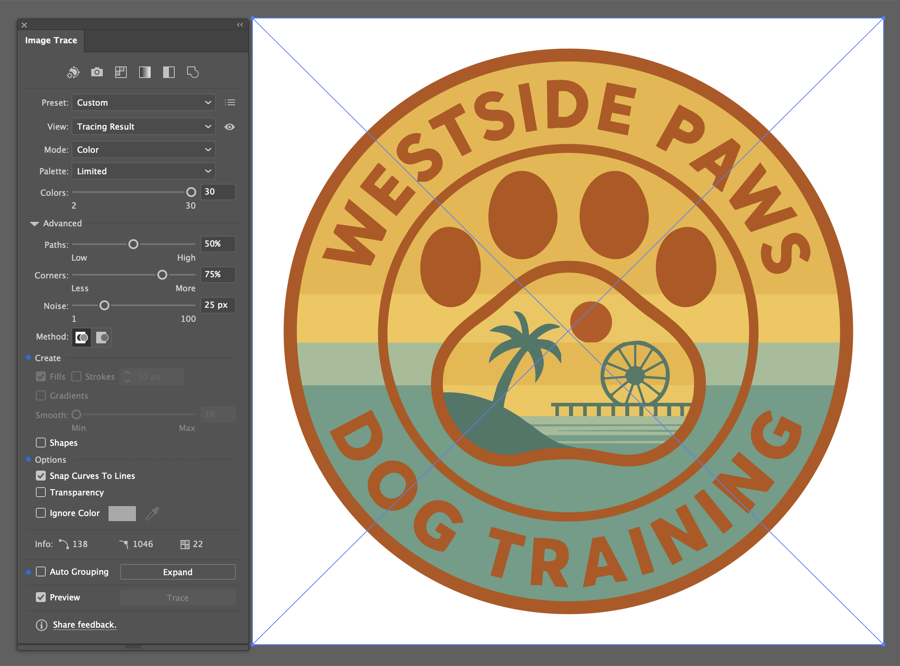
To prove the point, here is Image Trace run on a clean, high-resolution render of the same logo. The result is excellent: just 138 paths and 1,046 anchor points. But there's a catch. It only traces this well because the source had already been hand-vectorized. Auto-trace shines on artwork that no longer needs it.
Tip: trace a cleaned-up source
Before tracing, ask ChatGPT to regenerate the logo "flat, with solid colors, no gradients, no shadows, on a plain white background." A flatter source image dramatically improves Image Trace results.
- Fast: a result in seconds, not hours
- Built into Illustrator, no extra tools needed
- Decent on simple, flat, high-contrast logos
- Output is editable if you want to refine it manually
- Struggles with ChatGPT's soft edges, gradients, and texture
- Produces bloated files with hundreds of unnecessary anchor points
- Colors get posterized or merged unpredictably
- Still requires an Illustrator subscription
Method 3Use an AI Vectorizer Tool
 VectorGurus Studio
 Recraft
 Vectorizer.AI
If you don't have Illustrator, browser-based AI vectorizers do the tracing for you. Upload your PNG, and a model converts it to SVG in seconds. Our own VectorGurus Studio is free to try: upload your ChatGPT logo, preview the vectorized result side by side with the original, and download the SVG if you're happy with it.
Modern AI vectorizers handle soft edges better than classic auto-trace, and they're the fastest path from "ChatGPT gave me a PNG" to "I have an SVG." For web use, presentations, and simple logos they're often all you need.
- Instant: seconds from upload to vector preview
- No software to install, works in the browser
- Free to try, only pay to download
- Handles AI-generated images better than classic auto-trace
- Automated output: fine detail and tiny text can lose fidelity
- Complex gradients may be simplified
- No human judgment: flaws in the original get faithfully traced too
Method 4Have the Professionals Do It


When the logo is going on products, signage, merchandise, or anything a client pays for, hand it to a professional. Our vector artists redraw ChatGPT logos by hand using the same Pen Tool technique from Method 1, done by people who do it every day. You get print-ready AI, EPS, SVG, and PDF files with clean paths, deliberate colors, and small AI-artifact fixes baked in.
Pricing starts at $50 with 24-hour delivery, and revisions are included until it's right.
- Hand-traced quality with zero effort on your part
- All print formats delivered: AI, EPS, SVG, PDF
- AI artifacts and imperfections cleaned up along the way
- Revisions included, with 24-hour turnaround
- Costs money (from $50)
- Not instant; delivery within 24 hours
Which Method Should You Choose?
| Method | Cost | Time | Best for |
|---|---|---|---|
| Pen Tool | Illustrator sub | 2–6 hours | Designers who want full control and top quality |
| Image Trace | Illustrator sub | Minutes + cleanup | Simple flat logos, quick drafts |
| AI vectorizer | Free to try | Seconds | Web use, fast turnaround, no software |
| Professionals | From $50 | 24 hours | Print, merch, signage: anything that has to be perfect |
Rule of thumb: if the logo stays on screens, try the free AI vectorizer first. If it's going into the physical world (shirts, signs, packaging), get it hand-traced by professionals so it's right the first time.