
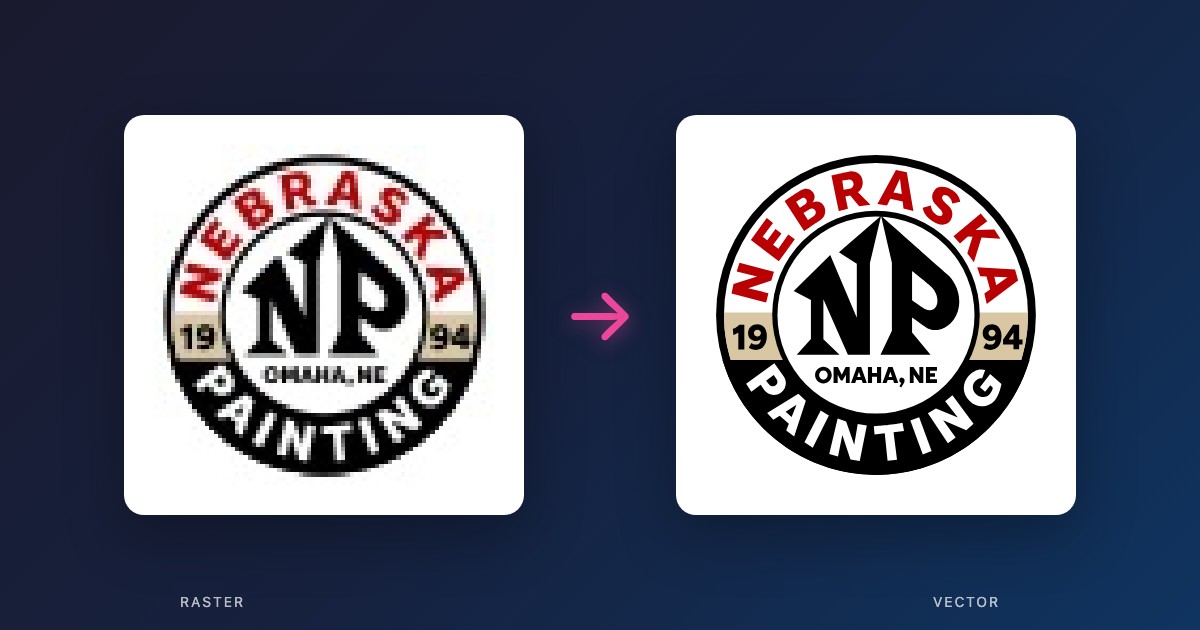
1. What is SVG, really?
SVG stands for Scalable Vector Graphics. But that definition doesn't really tell you much. Let's break it down differently.
Think about how you'd describe a circle to someone over the phone. You wouldn't say "it's 47,000 tiny colored dots arranged in a circular pattern." You'd say:
"Draw a circle, 2 inches wide, centered on the page, and fill it with blue."
That's exactly what SVG does. Instead of storing millions of pixels (like a photograph), it stores instructions for drawing shapes. The computer follows these instructions to render the image — at any size you want.
The key insight
A PNG file says "here are 1 million colored dots." An SVG file says "draw a circle here, a rectangle there, fill them with these colors." That's why SVG files are often 10-100x smaller.
2. The scaling problem (and why SVG solves it)
Here's the problem that SVG was invented to solve. You design a logo at 200×200 pixels. It looks great on your website. Then someone wants to put it on a billboard.
If it's a PNG or JPEG, you're stuck. Scaling it up means stretching those 200×200 pixels across 20 feet of billboard. The result? A blurry, pixelated mess.
JPEG (pixelates)
SVG (stays sharp)
Try it yourself: Zoom the logo
Zoom: 1.0x
SVG doesn't have this problem. Because it stores instructions rather than pixels, the computer can re-draw the image at any resolution. Billboard? No problem. Business card? Same file. Favicon? Still perfect.
This is why every professional logo, icon, and illustration should exist as an SVG. It's not a nice-to-have — it's essential for any serious use.
3. Inside an SVG file
Here's something that surprises most people: you can open an SVG file in a text editor. It's not a mysterious binary format like JPEG or PNG — it's plain text that describes shapes.
You don't need to understand the code to work with SVGs, but having a basic mental model helps when things go wrong. Click each layer to see what it does:
Anatomy of an SVG file
<svg viewBox="0 0 100 100">
  <circle
    cx="50" cy="50" r="40"
    fill="#3b82f6"
    stroke="#1d4ed8" stroke-width="2"
  />
</svg>
The most important part is the viewBox. This defines the "internal coordinate system" — basically, the size of the canvas that all the shapes are drawn on. Understanding viewBox is the key to understanding why SVGs scale perfectly.
4. When to use SVG (and when not to)
Perfect for SVG
- • Logos and brand marks
- • Icons and UI elements
- • Illustrations with flat colors
- • Charts and data visualizations
- • Anything that needs to scale
- • Print production files
Not ideal for SVG
- • Photographs
- • Complex gradients or textures
- • Images with thousands of colors
- • Scanned documents
- • Anything with fine detail shading
The rule of thumb: if it was created on a computer (designed, illustrated, typed), it should probably be SVG. If it was captured from the real world (photographed, scanned), it should probably be JPEG or PNG.
5. SVG for print: screen printing, embroidery, laser cutting
This is where understanding SVG becomes business-critical. Different production methods have different requirements, but they all start with one thing: clean vector files.
Screen Printing
Screen printers need separated colors. Each color in your design becomes a separate screen. If your "SVG" is actually a raster image wrapped in an SVG container (this is common!), they can't separate it.
What printers need:
- • True vector paths (not embedded images)
- • Text converted to outlines
- • Spot colors, not RGB gradients
Embroidery
Embroidery machines follow paths with a needle. They need vectors with clean, closed shapes. Open paths, overlapping elements, and tiny details will cause problems.
What digitizers need:
- • Simple, closed shapes
- • No details smaller than 1mm
- • Limited colors (each = different thread)
Laser Cutting & CNC
Lasers and CNC machines cut along paths. They need single-stroke outlines, not filled shapes. A filled rectangle is useless — they need the outline path.
What fabricators need:
- • Paths with no fill, only stroke
- • No overlapping lines
- • Exact dimensions (no "scale to fit")
6. SVG for developers: web, mobile, and app icons
If you're building apps or websites, SVG is your best friend for icons, logos, and illustrations. Here's what you need to know.
Why SVG beats icon fonts
Icon fonts (like the old Font Awesome approach) were popular but have issues: accessibility problems, rendering quirks, and single-color limitations. SVG icons are just better.
| Icon Fonts | SVG Icons | |
|---|---|---|
| Accessibility | Unpronounceable | aria-labels |
| Colors | Single only | Multi-color |
| Rendering | Can be fuzzy | Pixel-perfect |
| Bundle size | Loads entire font | Tree-shakeable |
Three ways to use SVG in code
// 1. Inline SVG (most control)
<svg viewBox="0 0 24 24" className="w-6 h-6">
  <path d="M12 2L2 7l10 5 10-5-10-5z" fill="currentColor"/>
</svg>
// 2. As an image (simplest)
<img src="/icons/logo.svg" alt="Logo" />
// 3. As a React/Vue component (best DX)
import { Logo } from '@/icons/Logo'
<Logo className="w-8 h-8 text-blue-500" />
The currentColor trick
Set fill="currentColor" in your SVG, and it inherits the text color from CSS. This lets you change icon colors with just a class:
<button className="text-gray-500 hover:text-blue-500">
  <MyIcon /> {/* Icon changes color on hover! */}
</button>
Optimizing SVGs for production
SVGs from design tools often contain unnecessary metadata, comments, and redundant attributes. Run them through an optimizer:
- SVGO — CLI tool, integrates with build pipelines
- SVGOMG — Web-based, great for quick optimization
- @svgr/webpack — Converts SVGs to React components
Watch out for "fake" SVGs
Some SVGs contain embedded PNG/JPEG images — they're SVG files in name only. If your SVG is larger than 100KB for a simple icon, something's wrong. Check for <image> tags inside.
7. Common SVG problems (and how to fix them)
"My SVG is huge (several MB)" — The file contains an embedded raster image. Open in Illustrator/Inkscape and check for embedded images.
"Colors look different on screen vs. print" — SVG uses RGB, print uses CMYK. Convert colors or specify Pantone spot colors.
"My text changed to a different font" — Font isn't installed. Convert text to outlines/paths before exporting.
"The file opens as a blank white box" — ViewBox issue — shapes are outside the visible area. Check viewBox dimensions.
"Print shop says my vectors aren't vectors" — Auto-trace created poor paths. Professional hand-tracing may be needed.
8. How to tell if your SVG is "production-ready"
Before sending an SVG to a print shop, laser cutter, or embroidery service, run through this checklist:
Production-Ready SVG Checklist
Key takeaways
SVG stores instructions, not pixels — that's why it scales infinitely
The viewBox is the "internal canvas" that makes scaling work
Not all SVGs are created equal — embedded rasters, missing fonts, and poor paths cause problems
Different production methods (print, embroidery, laser) have different requirements
A "real" vector file should be small, scalable, and have clean paths